|
PaintShopPro ***
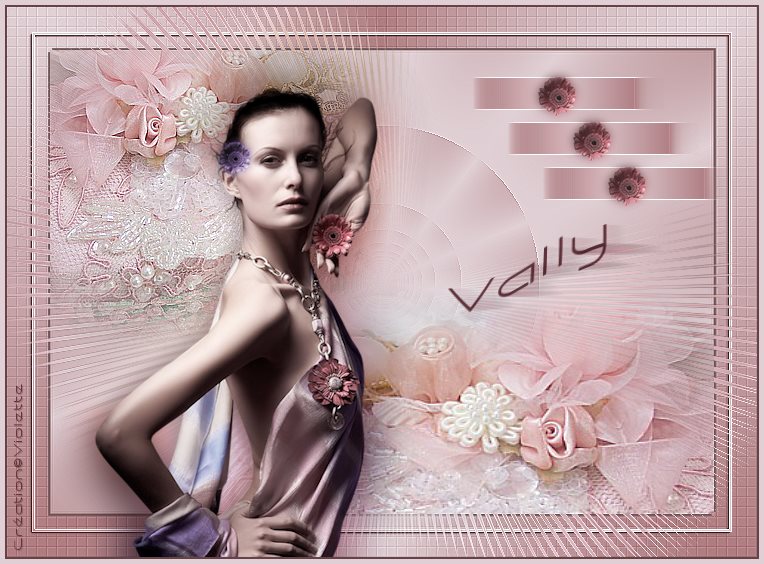
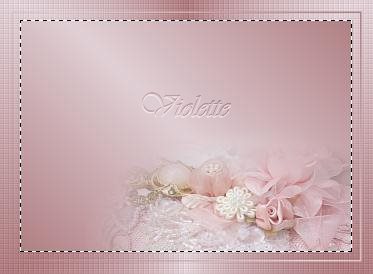
Vally Traduction©Violette *** This tutorial is made with PSP XII but can be carried out in other versions too Pluggin : Xero set 4 ICI Material :
***
***
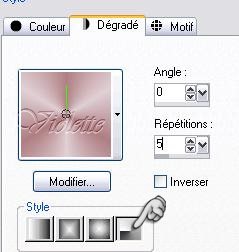
1 - Open your tubes and close duplicate originals 2 - Set foreground on color #b07f83 and set background on color #e0d0d5 Configure gradient: style halo/ Repeats: 5/ Invert not checked
2 - Open a transparent image of 750 x 550 pixels / fill with gradient 3 - Effects/Xero/Fritillary : 10/30/10/0
Adjust/Sharpen/Sharpen More
4 - Layers/New Layer Select/Select All Selections/Modify/Contract 25 pixels fill with color #b07f83
5 - Selections/Modify/Contract 3 pixels hit your delete key
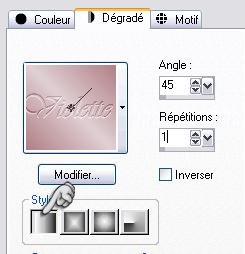
6 - Selections/Modify/Contract 15 pixels Layers/New Layer fill with gradient /style linear/ angle 45°/ Repeat: 1/ Invert not checked
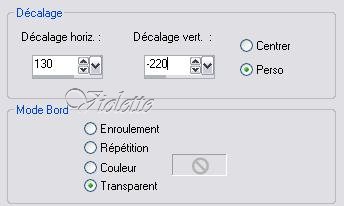
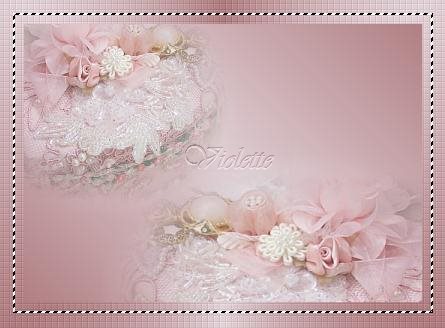
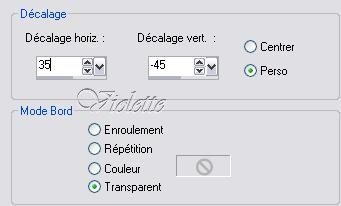
7 - Layers/New Layer Open the "Chrimist_ rvhck327.pspimage"tube/Image/Miroir Edit/Copy/Edit/Paste Into Selection Effects/Image Effects/Offset: 130/-220/ Custom/Transparent
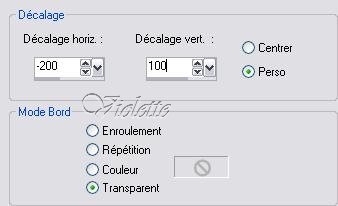
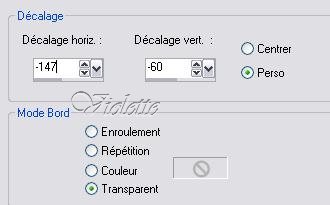
8 -Open the "Chrimist_ rvhck327.pspimage" tube/Image/Miror Edit/Copy/Edit/Paste as a new layer Effects/Image Effects/Offset:
Merge the layer with the below Layer
9 - Activate the raster 2 Activate the selection Raster 2 with magic wand
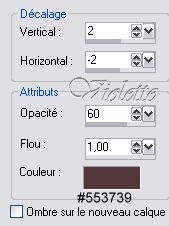
10 - Effects/3D Effects/Drops Shadow : 2/-2/60/1/ color #553739
Select/None Effects/Edge effects/Enhance
11 - Activate the raster 3
Effects/3D Effects/Drops Shadow : 2/-2/60/1/ couleur #553739 Repeat with this values: -2 /2 60/1 couleur #553739
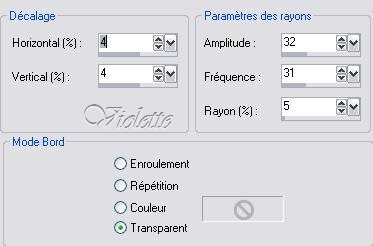
12 - Activate the superior raster Duplicate/closed the copy/Activate the original tube Adjust/Blur/Gaussian Blur : 10 Effects/ Distortion Effects /spiky halo :
Duplicate
13 - Open the closed raster Merge the layer with the below Layer x 2 once
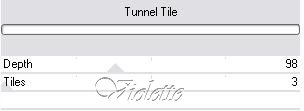
14 - Closed the superior raster Activate the raster 3 Select/Select all Selections/Modify/Contract 43 pixels Effects/Funhouse/Tunnel Tile : 98/3
Select/none Open the closed raster
15 - Open the "Jet_woman08_februari_2008.pspimage" tube Image/Resize 85 % ans 90%/ resize all layers not checkedEdit/Copy/Edit/Paste as a new layer Effects/Image Effects/Offset:
16 - Duplicate/ Closed the copyActivate the original tube Adjust/Blur/Gaussian Blur : 25Blend Mode on : Hard Light
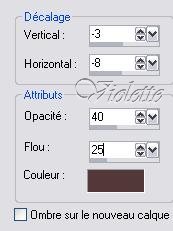
17 - Activate the copy: Effects/3D Effects/Drops Shadow : -3/-8/40/25/ couleur #553739
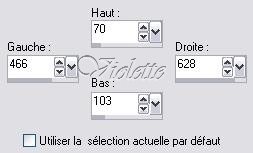
13 - Activate the Selection Tool/ Click on Personalized Selection Layers/New Layer Settings:
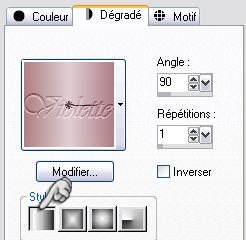
fill with gradient linear angle 90°/repeat: 1/inverse no checked
Select/None
20 - Duplicate Effects/Image Effects/Offset:
21 - Duplicate Effects/Image Effects/Offset:
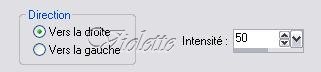
22 - Merge the layer with the below Layer x 2 once 23 - Effects/Distortion effets/Wind to right : 50
Effects/Edge effects/Enhance
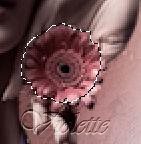
24 - Activate the tool surround the flower in the hand
Edit/Copy/Edit/Paste as a new layer place as on the model:
Duplicate Effects/Image Effects/Offset: repeat n° 20Duplicate Effects/Image Effects/Offset: repeat n° 20
25 - Image/Add borders: 2 pixels color #553739 26 - Image/Add borders: 5 pixels color #e0d0d5
27 - Activate your Text tool /Font Capsule/Size on 48/ Vectorial Background on color: #553739 Type: Vally Layer palette/ right-click on Vector 1/ Convert to rasterlayer
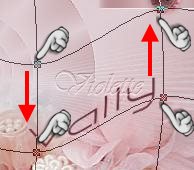
Activate the mesh deform tool
deform your text
Duplicate
23 - Effects/Distortion effects /Wind to right: 50 Blend Mode on : Hard Light
24 - Type your name 25 - Layers / Merge/ Merge all 26 -Exported JPEG Optimiser
another version:
This tutoriel is of my creation It is strictly interdict to copy it or to distribute it on the Net *** March 16, 2008 ***
|