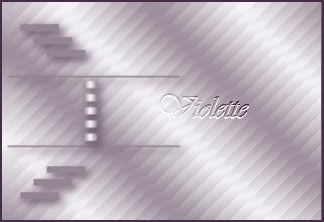
|
PaintShopPro ***
Sybille Traduction©Violette *** This tutorial is made with PSP XII but can be carried out in other versions too *** To make this tutoriel you will need:
***
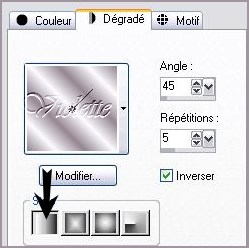
*** 1 - Open your tubes and close duplicate originals Put your filters in your file Filters of My PSP Files *** 2 - Set foreground on color #fcfaff and set background on color #9486933 - Configure gradient: style linear/ angle: 45°/Repeats: 5/ Invert checked
4 - Open the "selectionsybille.pspimage" it appears empty but it contains all the selections placed on channel alpha
flood fill with gradient Adjust/Blur/Gaussian Blur : 20
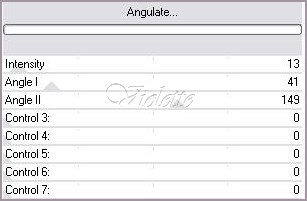
5 - Effects/Funhouse/Angulate :
6 - Effects/Edge effects/Enhance
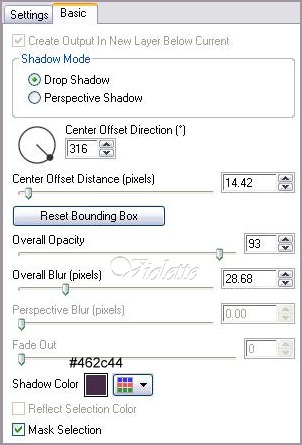
7 - Layers/New Layer 8 - selection/charge/charge a selection/charge starting from the canal alphato choose selection#1 flood fill color #948693 Selection/None 9 - Effects/Alien Skin Eye Candy Impact /Perspective Shadow /Drop Shadow Blurry Onglet Basic settings as under
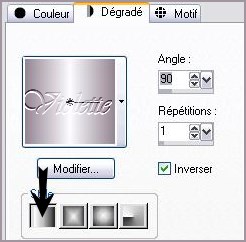
10 - Layers/New Layer 11 - selection/charge/charge a selection/charge starting from the canal alphato choose selection#2 full gradient : style linear/ angle: 90°/Repeat: 1/ Invert checked
Selection/none 12 - Effects/Alien Skin Eye Candy Impact /Perspective Shadow /Drop Shadow Blurry settings n°9
13 - Layers/New Layer 14 - selection/charge/charge a selection/charge starting from the canal alphato choose selection#3 full color #948693
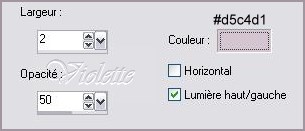
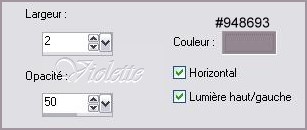
Effects/Texture Effects /Blinds:
15 - - Layers/New Layer 8 - selection/charge/charge a selection/charge starting from the canal alphato choose selection#4 full color #462c44 Selection/None
17 - Merge the layer with
the below Layer 18 - Effects/Alien Skin Eye Candy Impact /Perspective Shadow /Drop Shadow Lowest settings by defect
19 - - Layers/New Layer 20 - selection/charge/charge a selection/charge starting from the canal alphato choose selection#5 full color #d4ccd3
Effects/Texture Effects /Blinds:
21 - - Layers/New Layer 8 - selection/charge/charge a selection/charge starting from the canal alphato choose selection#6 full color #462c44 Selection/none
23 - Merge the layer with
the below Layer 24 - Effects/Alien Skin Eye Candy Impact /Perspective Shadow /Drop Shadow Lowest settings by defect
25 - Layers/New Layer 8 - selection/charge/charge a selection/charge starting from the canal alphato choose selection#7 full color #462c44
Effects/3D Effects/Drops Shadow : 1/1/50/2/noir
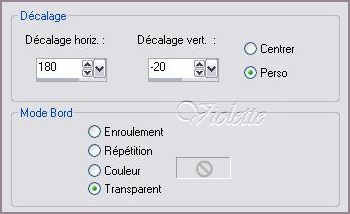
27 - open your tubeEdit/Copy/Edit/Paste as a new layer * no move the tube * 28 - Effects/Image Effects/Offset: 180/-20/ Custom/Transparent
29 - Duplicate Activate the original tube Adjust/Blur/Gaussian Blur : 20Effects/L&K/Mayra settings by defect
30 - Activate the copy: Effects/Alien Skin Eye Candy Impact /Perspective Shadow: Drop Shadow ,Blurry color #462c44
31- Layers/New Layer32 - selection/charge/charge a selection/charge starting from the canal alphato choose selection#8 full color #462c44 opacity to 62%
33 - Image/Add borders: 2 pixels color #fcfaff 34 - Image/Add borders: 45 pixels color #462c44 35 - Image/Add borders: 2 pixels color #fcfaff
36 - Activate the text tool/Font Carleton/Size : 72/Vectorial Background on color: #462c44 Put the letter: SLayer palette/ right-click on Vector 1/ Convert to rasterlayer
37 - Size : 48/Vectorial Background on color: #462c44 Put the text: ybilleLayer palette/ right-click on Vector 1/ Convert to rasterlayer place side by side well
38 - Merge the layer with the below Layer Effects/3D Effects/Drops Shadow : 1/1/40/1/couleur #000000
39 - Type your name 40 - Layers / Merge/ Merge all 41 -Exported JPEG Optimiser
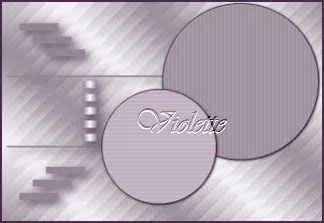
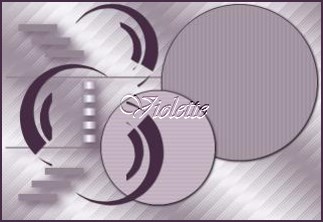
Another version:
This tutoriel is of my creation It is strictly interdict to copy it or to distribute it on the Net *** August 25, 2008 ***
|